
Get started
Start copying Gizmo, one step at a time
7 steps, split into small parts, with one task on each screen. It takes about 40 minutes in total, plus however long Vantage takes to check your ID.
Capital at risk. Forex trading is high risk and not suitable for everyone. You could lose some or all of the money you put in. Please read the full risk warning before you start.
Welcome back — you were on step .
Step 1 of 7
Save my progress / email me a link
Your progress is saved automatically in this browser on this device, so you can close the page and come back.
Email links aren't connected yet. This doesn't send anything.
-
Step 1: Do you have a Vantage live MT5 account?
About 1 minute
Gizmo is copied through V Social, Vantage's copy-trading service, so you need a live (not demo) MT5 account with Vantage.
Not sure? Search your inbox for an email from Vantage with an MT5 account number, password and server. If you have one, choose Yes.
Before you start, have these ready
- Your phone (for a text code and a face scan)
- Access to your email inbox
- Photo ID and proof of address (only if you're opening a new Vantage account)
- At least £1,000 to fund your trading account, which you can afford to lose
-
Step 2: Quick check of your existing account
About 2 minutes
Make sure it's a live MT5 account. Your MT5 login details are in an email from Vantage.
Have you already put money into this Vantage account?
The 150% bonus is for a first deposit, so if you've already deposited it may not apply to you. Vantage also offers 25% on additional deposits; if you're adding more money, opt in first (see Step 2e). Vantage decides who qualifies.
-
Step 2a: Register with Vantage
About 3 minutes
Open Vantage sign-up (opens in a new tab)
This is our referral link. Gizmo may receive commission from Vantage if you open an account through it.
- A box tells you which Vantage company your account will be with. Enter your email, tick both boxes and click Proceed.
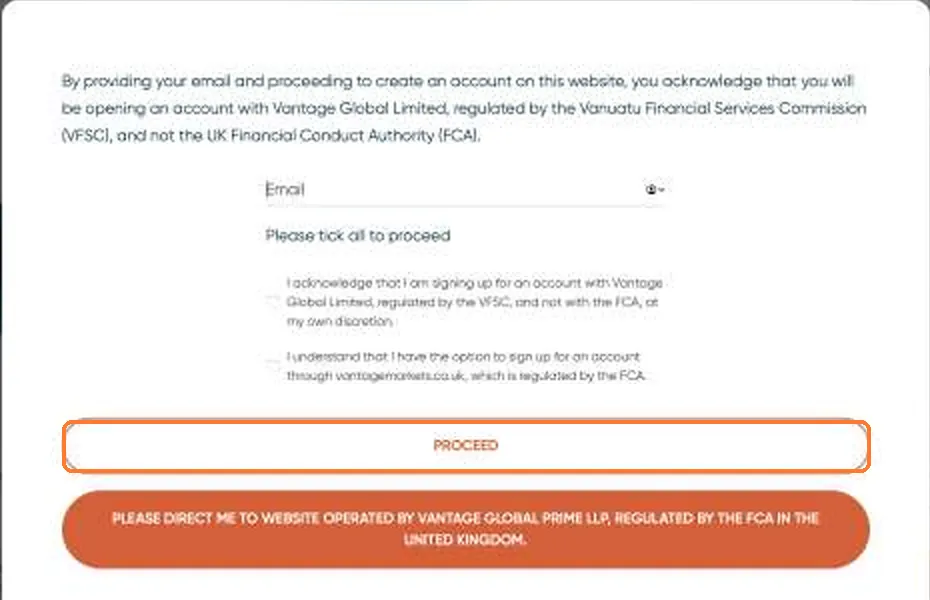
As shown on Vantage's screen: Vantage Global Limited is regulated by the Vanuatu Financial Services Commission (VFSC), not the UK FCA. - Choose your country, enter your email and a password.
- Referred By: if it's empty, type our code SiRnM52d.
- Choose Individual, tick the boxes and click Create Account.
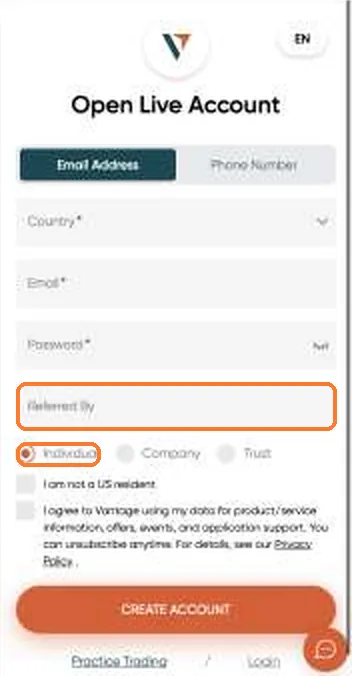
Referred By and Individual are highlighted. Need more help?
The code is case-sensitive: capital S, small i, capital R, small n, capital M, then 5, 2, small d.
If you see a "Just a moment" security check, wait a few seconds and the page will load.
Use an email address you can open now, because Vantage sends you a code in the next part.
-
Step 2b: Confirm your email, phone and details
About 3 minutes
- Vantage emails you a code. Type it in and click Submit.
- Enter your mobile number, click Send OTP, then type the code from the text message.
- If a picture puzzle appears, click the small pictures in the order shown.
- Fill in your personal details exactly as they appear on your ID and click Submit.
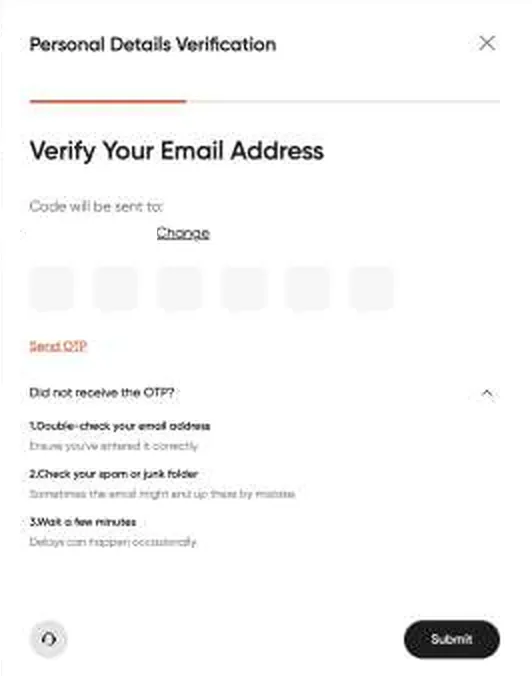
Need more help?
No code? Check your junk or spam folder, wait a few minutes, then click Send OTP again.
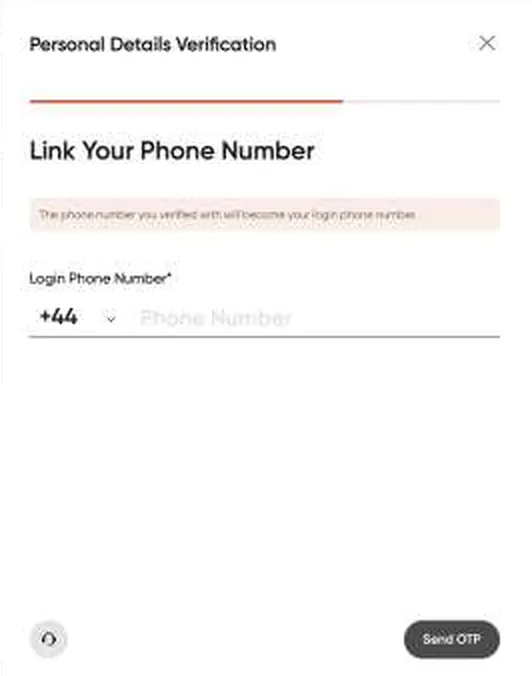
Phone number: choose your country code, then Send OTP. 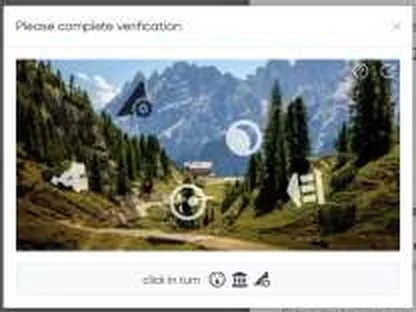
The puzzle: click the icons in the order shown at the bottom. 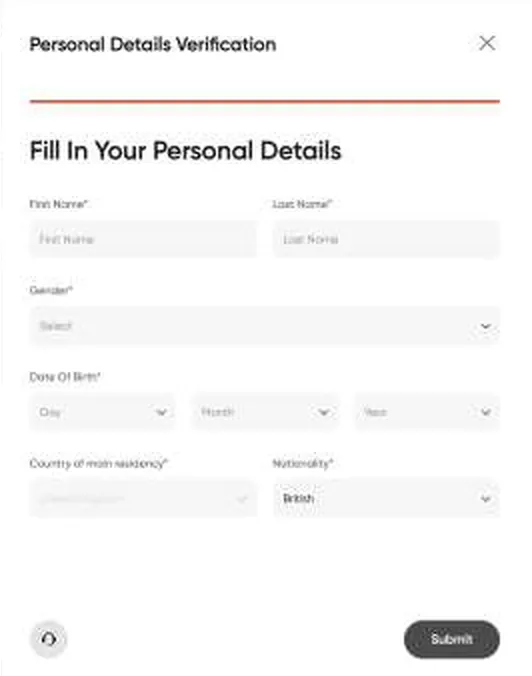
Your details must match your photo ID. -
Step 2c: Set up your MT5 trading account
About 2 minutes
- On You're Almost All Set To Trade, click Setup Account.
- Choose account type Standard and currency GBP. The platform should say MetaTrader 5.
- Tick the box to accept the terms and click Submit.
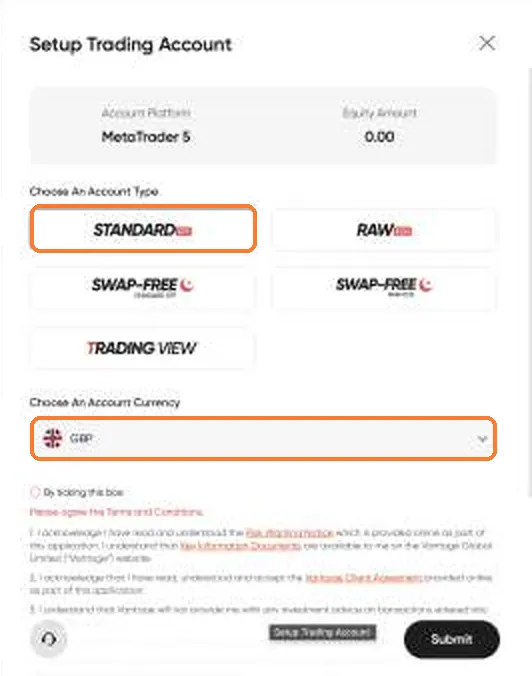
Standard and GBP are highlighted. Keep the email from Vantage. Vantage emails your MT5 account number, password and server. You'll need all three in Step 5.
Need more help?
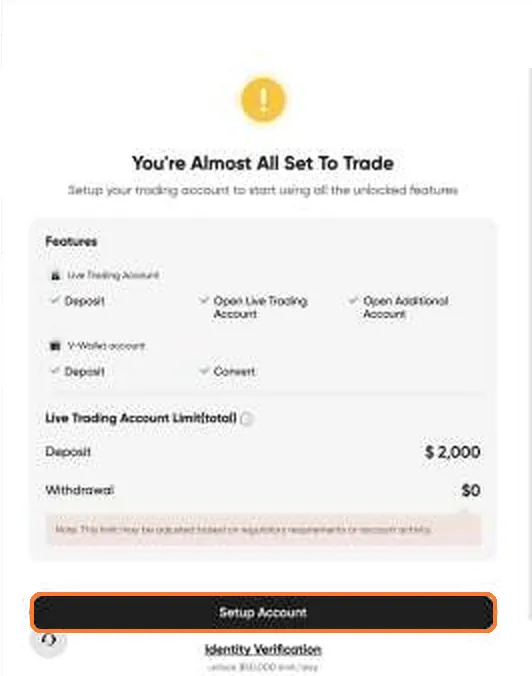
Click Setup Account. Don't pick Raw, Swap-free or TradingView. Gizmo's settings are based on a Standard MT5 account.
Until you've verified your ID (next part), Vantage limits how much you can deposit.
-
Step 2d: Verify your ID and address
About 5 to 10 minutes
- Click your profile icon (top right), then Verification, then Identity verification.
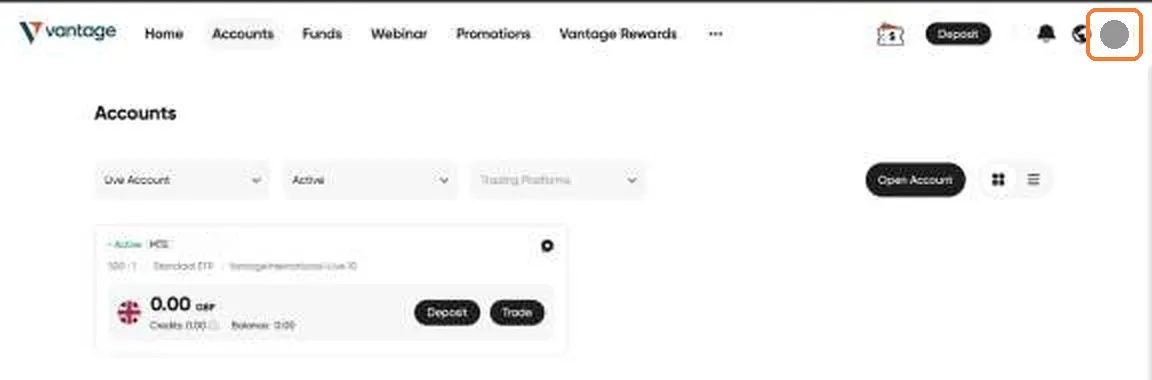
Your profile icon is in the top right corner. - Follow the steps on your phone: photo ID, then a quick face check.
- Then do Residency Address Verification with your proof of address.
- When you're done, you should see 3 green "Verified" ticks.
Need more help?
- Photo ID: for example your passport or driving licence. Make sure it's in date.
- Proof of address: for example a recent utility bill or bank statement with your name and address on it.
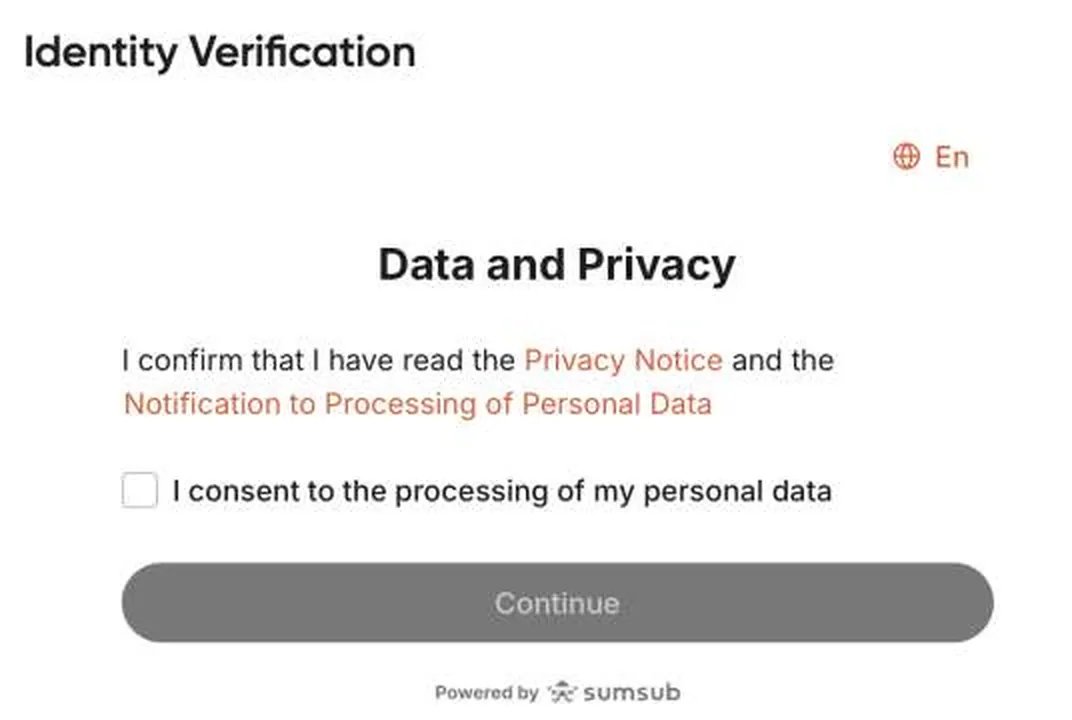
First, tick the consent box and click Continue. Face scan tips
- Find good, even light and face towards it.
- Take off glasses and any hat.
- Hold your phone at eye level and keep still.
- If it fails on a computer webcam, use your phone instead.
- If it doesn't work first time, just try again. Retrying is normal.
Checks are usually quick but can take longer. Your progress on this page is saved, so you can close it and come back.
-
Step 2e: STOP — do this before you deposit
About 3 minutes
Don't deposit yet
Do these 3 things in Vantage before you put any money in. If you deposit first, you won't get the deposit bonus.
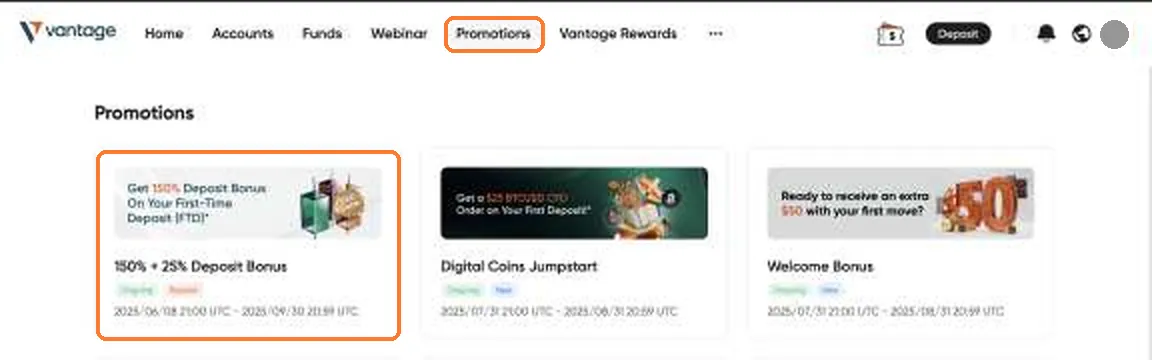
Click Promotions at the top, then 150% + 25% Deposit Bonus.
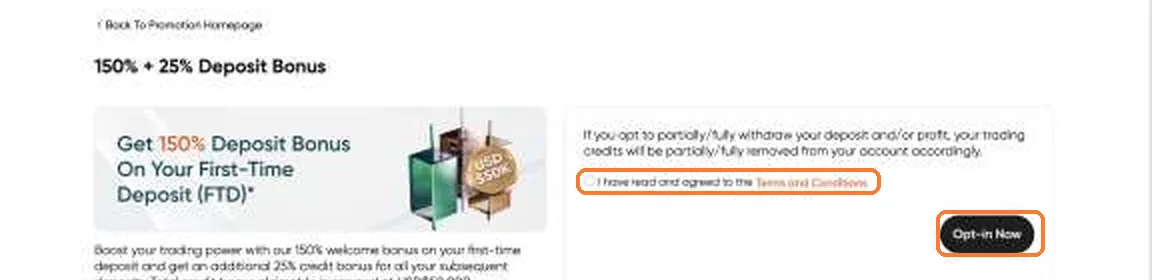
Tick I have read and agreed to the Terms and Conditions, then click Opt-in Now.
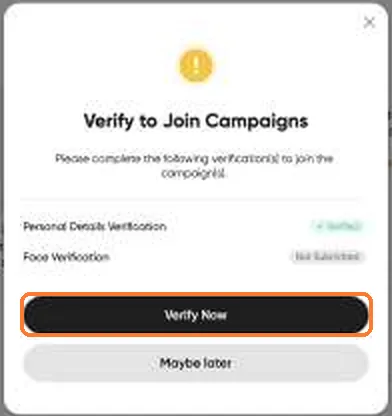
A box asks you to verify your face. Click Verify Now, scan the QR code with your phone and do the face scan.
Need more help?
Face scan tips
- Find good, even light and face towards it.
- Take off glasses and any hat.
- Hold your phone at eye level and keep still.
- If it fails on a computer webcam, use your phone instead.
- If it doesn't work first time, just try again. Retrying is normal.
About the deposit bonus
- 150% bonus on your first deposit (the bonus is capped at £1,000)
- 25% bonus on additional deposits
The bonus is offered by Vantage and its terms are set by Vantage, so please read them before you opt in. Vantage's bonus page says that if you withdraw some or all of your deposit or profit, some or all of the bonus credit is removed. A bonus doesn't reduce the risk of trading: you can still lose the money you deposit.
If Vantage says you've already opted in, or your face is already verified, that's fine: tick the box and carry on.
-
Step 3: Make your deposit
About 5 minutes
Bonus check: only deposit once you've done all 3 parts of Step 2e (opt in to the bonus and verify your face). If you deposit first, you won't get the deposit bonus.
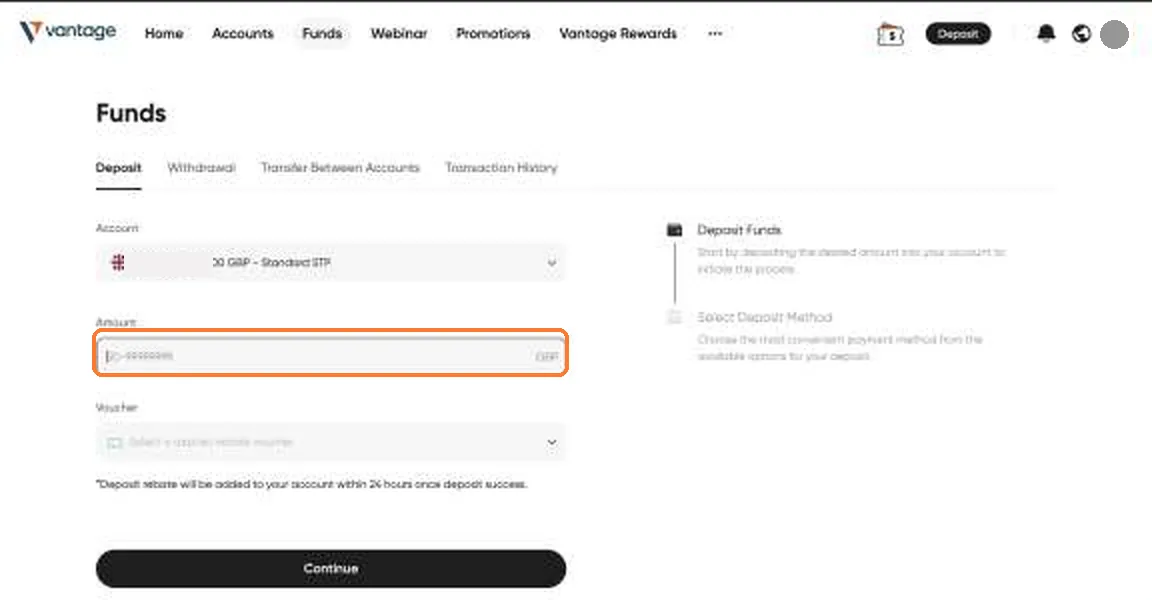
- In Vantage, click Funds, then Deposit.
- Choose your MT5 account, enter the amount and click Continue.
- Pay by debit card.
Your account balance needs to be at least £1,000. Only deposit money you can afford to lose.
Need more help?
The name on your card must match the name on your Vantage account.
Withdrawals go back to the card you paid with. You can only withdraw through the Vantage client portal.
After your deposit, look out for the Vantage email with your MT5 account number, password and server. You need it in Step 5.
About the deposit bonus
- 150% bonus on your first deposit (the bonus is capped at £1,000)
- 25% bonus on additional deposits
The bonus is offered by Vantage and its terms are set by Vantage, so please read them before you opt in. Vantage's bonus page says that if you withdraw some or all of your deposit or profit, some or all of the bonus credit is removed. A bonus doesn't reduce the risk of trading: you can still lose the money you deposit.
-
Step 4: Register on V Social and confirm your email
About 3 minutes
Open the V Social sign-in page, then click Register under the sign-in box.
Open V Social sign-in page (opens in a new tab)
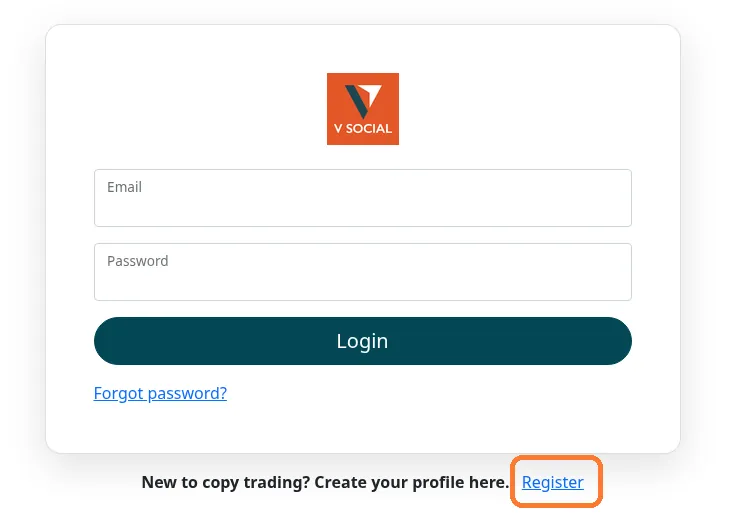
Click Register, under the sign-in box. - Fill in your email, password, confirm password, first name, last name, phone number and country of residence.
- Tick the two boxes to accept the Terms of Use and the Data Privacy Notice, then click Register.
- V Social emails you a link. Open it to confirm your email address. You can't log in until you've done this. Can't see it? Check your junk or spam folder.
- Go back to the sign-in page and log in with the email and password you just chose.
Two different passwords. The password you choose here is your V Social password. It's not the same as your MT5 password from the Vantage email, which you'll need in the next step.
-
Step 5: Link your MT5 account to V Social
About 3 minutes
- Click Account on the left-hand menu, then click Link trading account.
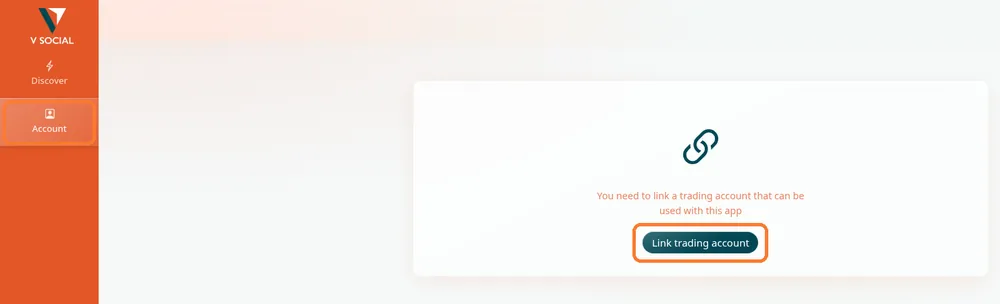
Account on the left, then Link trading account. - You'll see a page called Add new trading account. In Select broker, choose V Social.
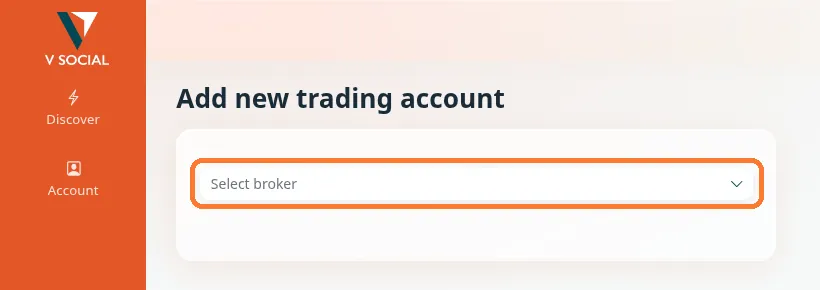
Select broker: choose V Social. - Select server: choose the server shown in your Vantage email, for example MT5 VantageST-Live04. Yours may be different, so copy it exactly.
- Account Number: your MT5 account number from the Vantage email.
- Password: your MT5 trading account password from the Vantage email, not your V Social password.
- Account link type: choose Copier.
- Click Link account.
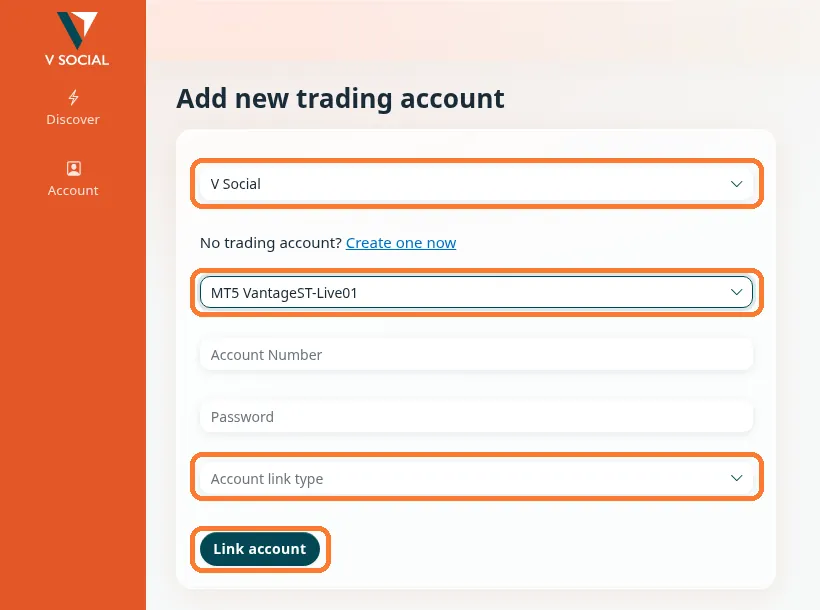
The server in this picture is only an example. Use the one in your Vantage email. Need more help?
Using the V Social app?
Tap Account (bottom-right), then Link an account. Pick your server, enter your MT5 account number and password and tap Done. When asked how to set up your account, choose Copy trades (this is Copier) and select your MT5 account.
Can't find the Vantage email?
Search your inbox and junk folder for "Vantage" and "MT5". Your MT5 account number is also shown on the Accounts page in the Vantage client portal.
-
Step 6: Open Gizmo and click Copy
About 5 minutes
Use this button to go straight to Gizmo on V Social. Log in if you're asked to.
Open Gizmo on V Social (opens in a new tab)
Please use this button rather than browsing. The Discover page lists lots of other strategies. This link takes you straight to Gizmo. Check the page says Gizmo at the top before you copy.
Be patient: after you log in, the page can take around 10 seconds to load.
Click Copy and follow the prompts. Use these settings:
- Trade size: select Mirror master size.
- Proportion: 1 for every whole £1,000 in your account. If your balance isn't a round thousand, round it down to the nearest whole £1,000 (see the table and example below).
- Round up to minimum trade size: tick it.
- Copy existing trades: leave it unticked.
- Click Update (in the app, Agree and Copy).
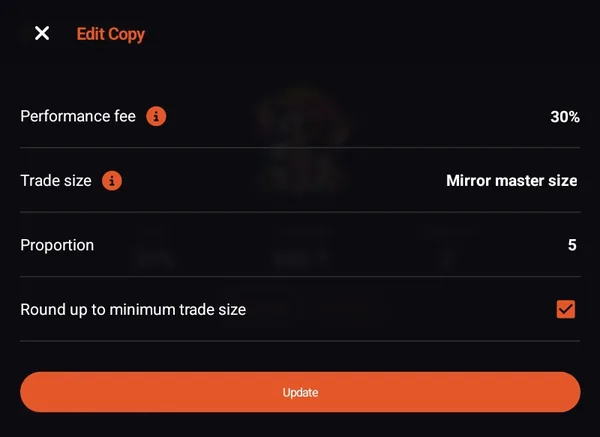
Example only: this account uses Proportion 5. Use your own balance rounded down to the nearest £1,000 (e.g. £1,450 = 1). - After you've clicked Update, go to the Copier Drawdown settings. Set Soft stop level to 50%, leave Hard stop level at 0%, then tap Agree and confirm.
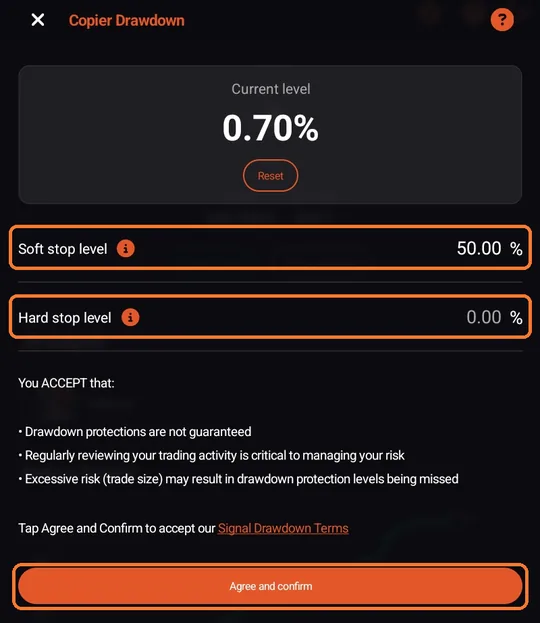
In the V Social app. The web version looks slightly different. Proportion setting Your account balance Set Proportion to £1,000 to £1,999 1 £2,000 to £2,999 2 £3,000 to £3,999 3 £4,000 to £4,999 4 £5,000 to £5,999 5 and so on 1 for every whole £1,000 Worked example
Your balance is £1,450. Round it down to £1,000, so set Proportion to 1. With £2,700, round down to £2,000 and set Proportion to 2.
About the 30% performance fee
Gizmo's performance fee is 30%, as shown on the Gizmo strategy page on V Social. It's charged on profits only, using a high-water mark: you only pay on new profit above your account's previous highest point. If your account drops, you don't pay again until it's back above that peak.
Illustration only (not a promise or forecast of returns): your account grows from £1,000 to £1,200, so the fee is 30% of the £200 profit = £60. If it then dips to £1,100 and recovers to £1,250, the fee is only on the £50 above the previous peak of £1,200 = £15. Exact figures are calculated by the broker and may differ slightly.
The broker works out the fee and takes it from your trading account automatically. You don't need to do or pay anything yourself.
The 30% fee is shown at the top of this screen: see the Edit Copy screenshot above.
Not sure about any setting? Ask us before you click Update.
Need more help?
No Copy button, or a "link a trading account" message?
Your MT5 account isn't linked yet. Click Link trading account and finish Step 5, then come back to this step.
-
Step 7: Tell us you're done
About 2 minutes
Press the button below to email us. Fill in the blanks and hit send, and we'll check everything is set up correctly.
Email us that you're doneButton not working? Email support@gizmoalgo.com
Never send us your MT5 or V Social password.
Stuck on a step? Email us at support@gizmoalgo.com and we'll help.